

Set up two-factor codes
Keep a site’s verification codes with its password, and let ROS fill the code for you.
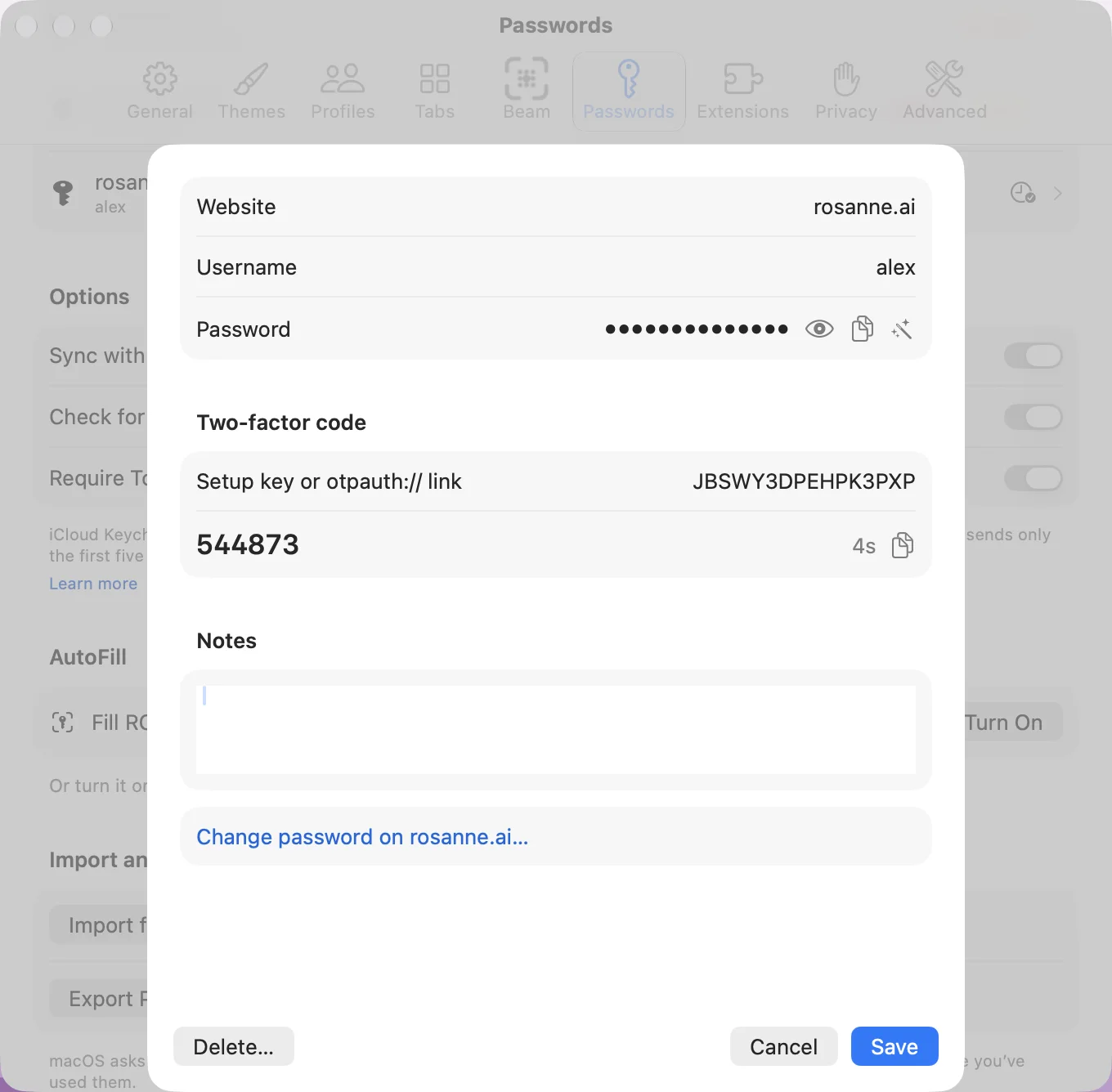
Add a two-factor code
- On the site, turn on two-factor authentication with an authenticator app. When it shows a QR code, look for its setup key and copy it.
- In ROS, open your passwords and the site’s password.
- Paste it into Setup key or otpauth:// link under Two-factor code, then save.
- Type the code ROS shows into the site to finish.
Fill a code
When a site asks for a verification code, click or tap the field and choose the code. ROS makes a fresh one after you unlock, and fills it in.
Was this helpful?