

Save and fill passwords
ROS offers to save a password when you sign in, and fills it next time after Touch ID or Face ID.
Save a password
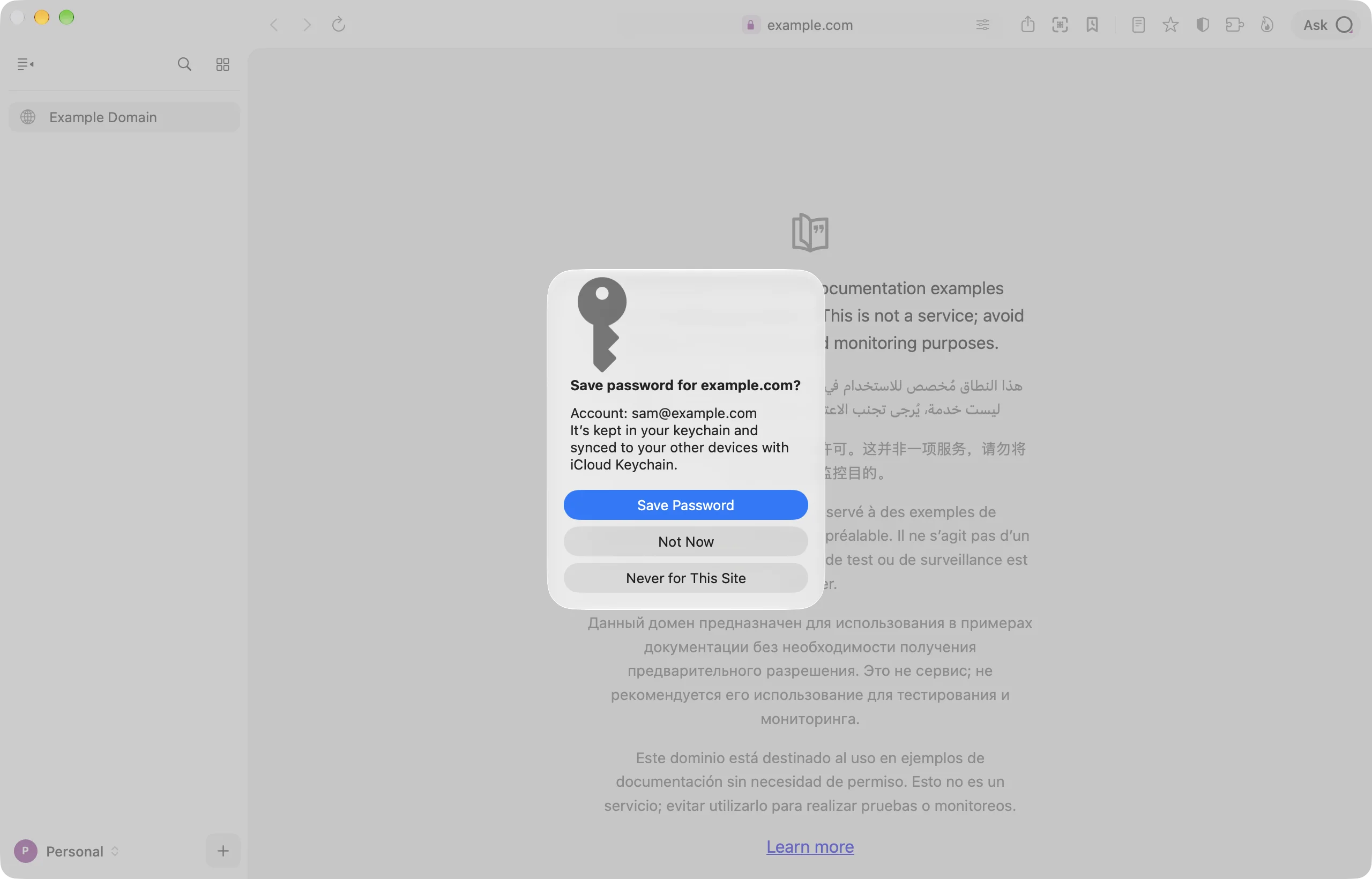
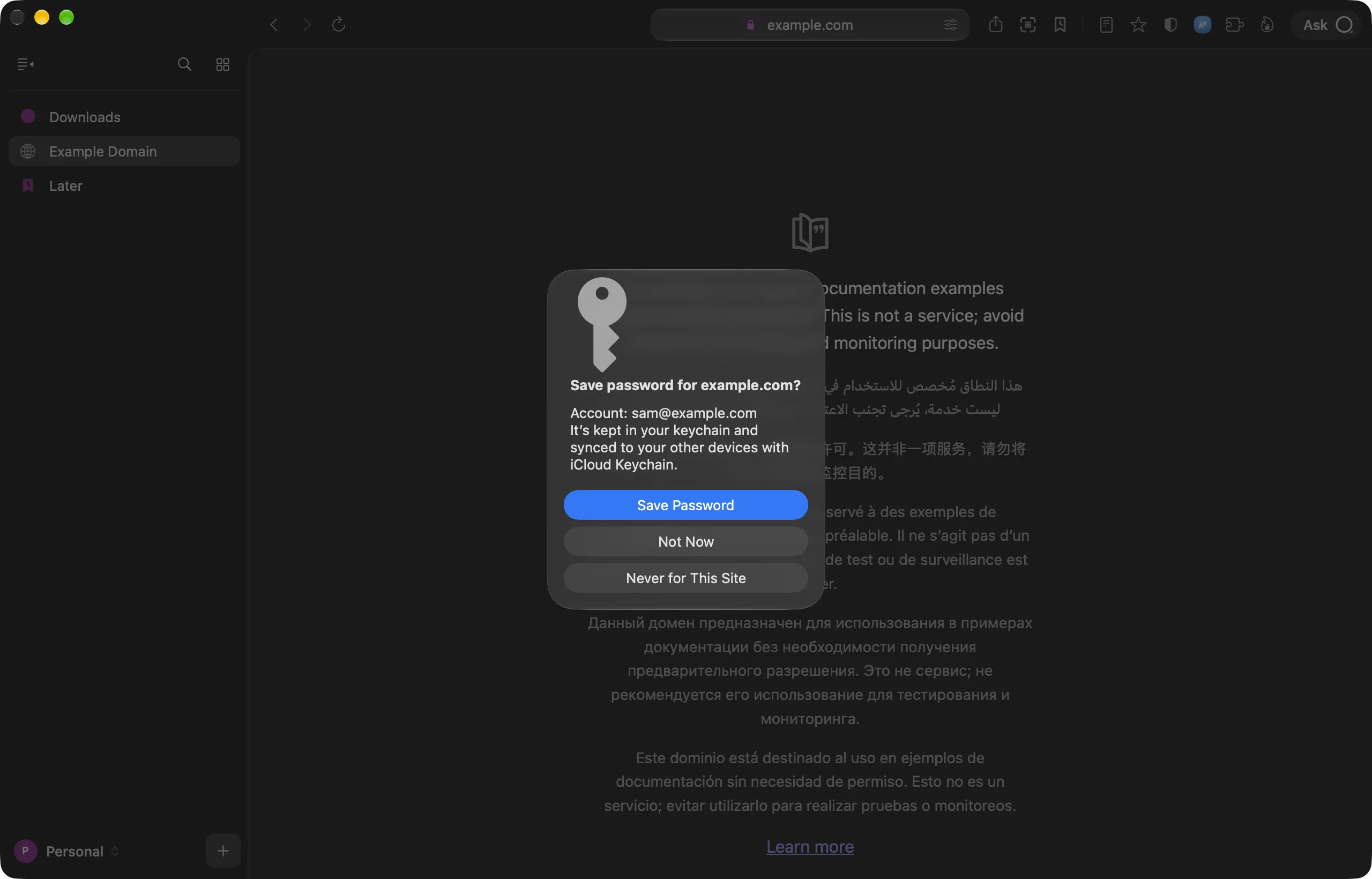
Sign in to a site as usual. ROS asks whether to save the password: click Save Password, Not Now, or Never for This Site.
On a sign-up form, choose Use Strong Password and ROS makes one and saves it when you submit.
Fill a password
On Mac
Click the site’s sign-in field and pick your account. ROS asks for Touch ID or your Mac password, then fills it. One unlock covers five minutes.
On iPhone
Tap the sign-in field and pick your account above the keyboard. ROS asks for Face ID or your passcode first.
See and change passwords
On Mac
Press Option Command L or choose ROS › Passwords…, then click Unlock. Click a password to change it, add notes or delete it.
On iPhone
Tap the shield at the left of the address bar, then Settings › Passwords, and tap Unlock.
Was this helpful?