

Block ads and trackers with Shield
Shield stops ads and trackers before a page loads. See who was tracking you, and let a site through when you need to.

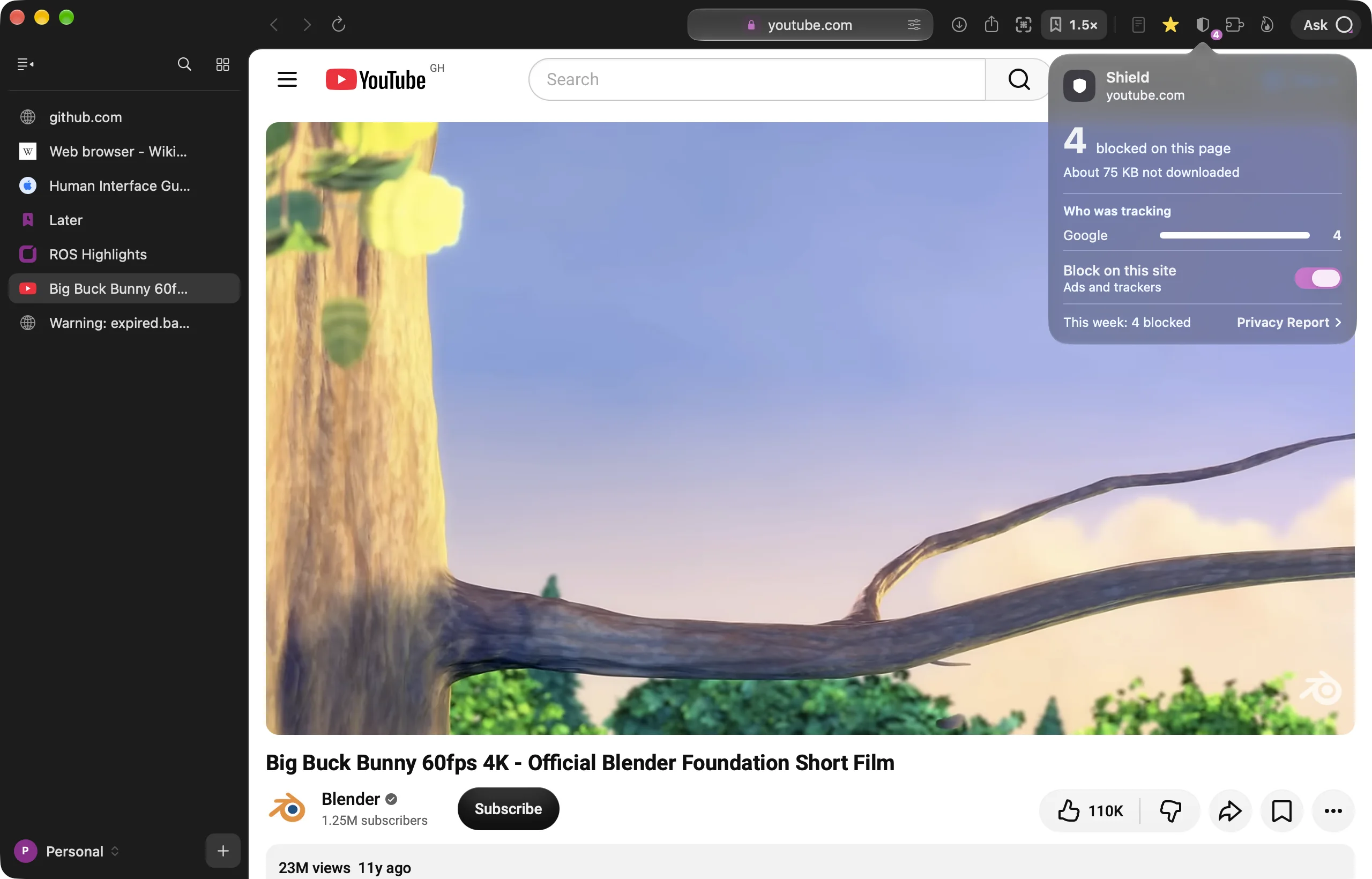
See what was blocked
On Mac
Shield is on from the start. The shield in the toolbar shows how many ads and trackers it stopped on the page.
Click it to see the count, how much was never downloaded, and the companies behind the trackers.
On iPhone
Shield is on from the start. The shield at the left of the address bar shows a slash when ads are allowed on the site. In Settings, under Privacy, Blocked This Week counts what was stopped.
Allow ads on one site
On Mac
- Click the shield in the toolbar.
- Switch off Block on this site. The page reloads with ads allowed.
Sites you’ve let through are listed in Settings › Privacy, under Sites allowed to show ads, with Remove.
On iPhone
- Tap the shield at the left of the address bar.
- Tap Allow Ads on This Site. Tap Block Ads on This Site to turn blocking back on.
Turn Shield off everywhere
On Mac
Choose ROS › Block Ads and Trackers to switch it off or on, or use Block ads and trackers in Settings › Privacy.
On iPhone
In Settings, under Privacy, switch Block Ads and Trackers.
Was this helpful?