

Take a Snapshot
Capture what you see, the whole page, the window, or just the part you drag over.
ROS for iPhone and iPad doesn’t have this yet. These steps are for ROS on a Mac.
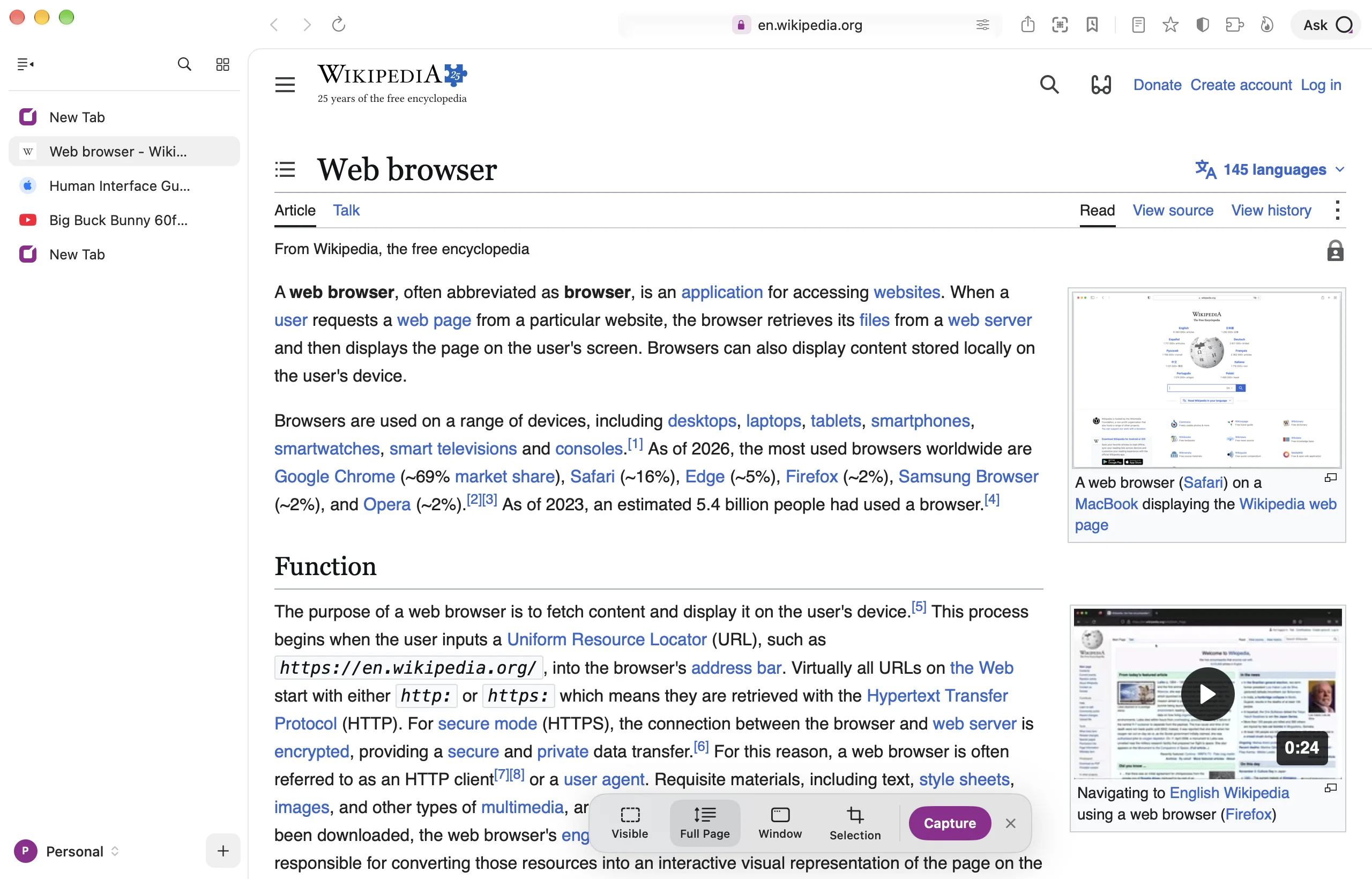
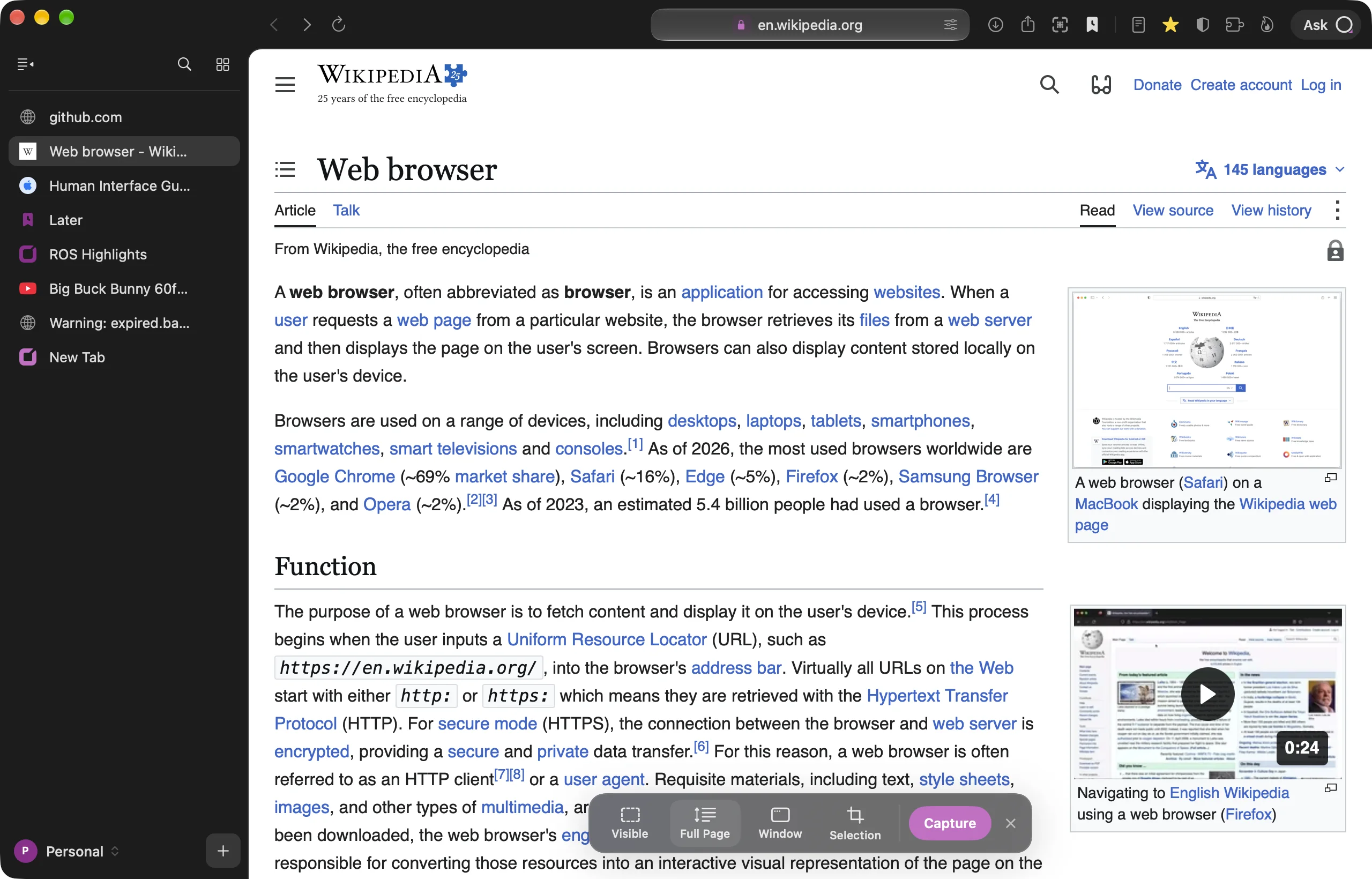
Take a snapshot
- Press Option Shift Command S, or choose View › Take Snapshot.
- Choose Visible, Full Page, Window or Selection. The keys 1 to 4 pick them too.
- Click Capture or press Return. For Selection, drag over the part you want.
A thumbnail appears in the corner. Click it to open the picture, drag it into another app, or use Copy, Share, Show in Finder or Delete.
Where snapshots go
Snapshots are saved as PNG files in Downloads › ROS Screenshots. To save them somewhere else, use Save snapshots to in Settings › General.
Was this helpful?