

Bring your browsing to ROS
Bring bookmarks and history from the other browsers on your Mac, and passwords from a file. Nothing leaves your Mac.
ROS for iPhone and iPad doesn’t have this yet. These steps are for ROS on a Mac.
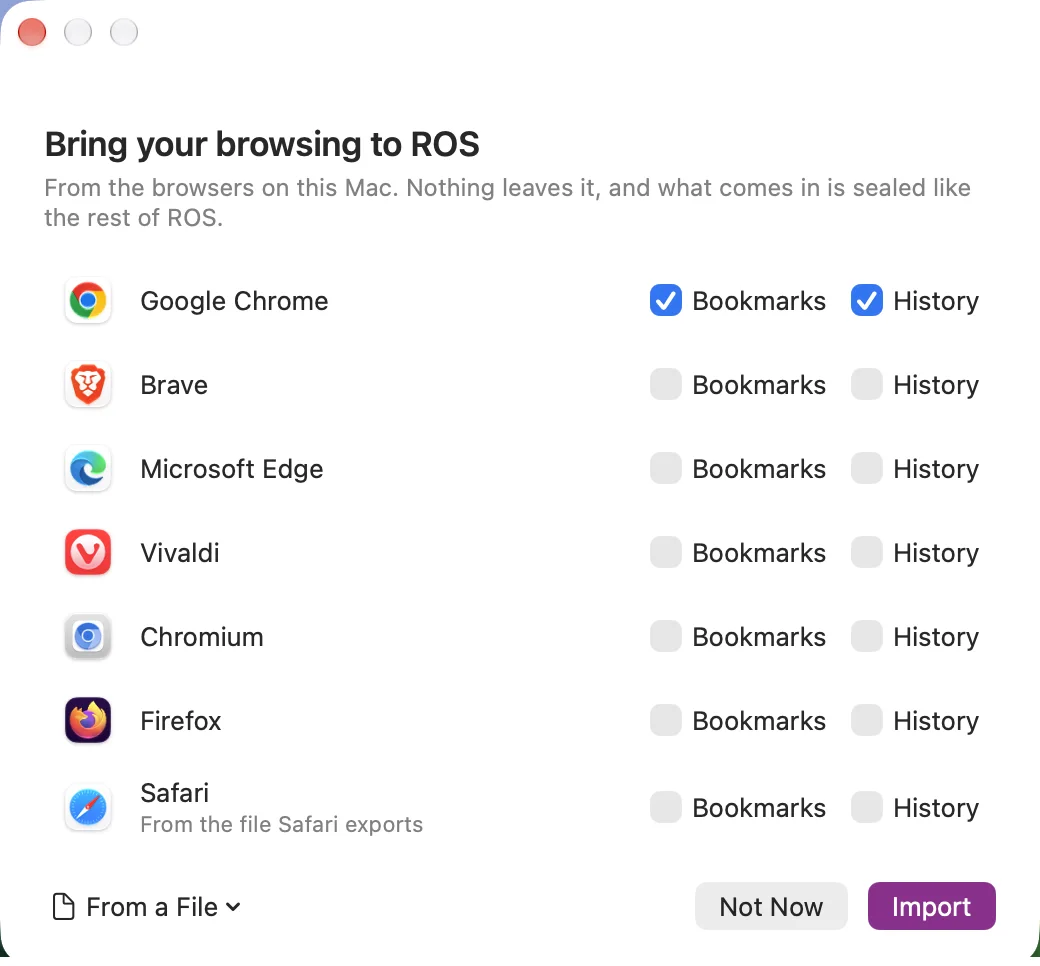
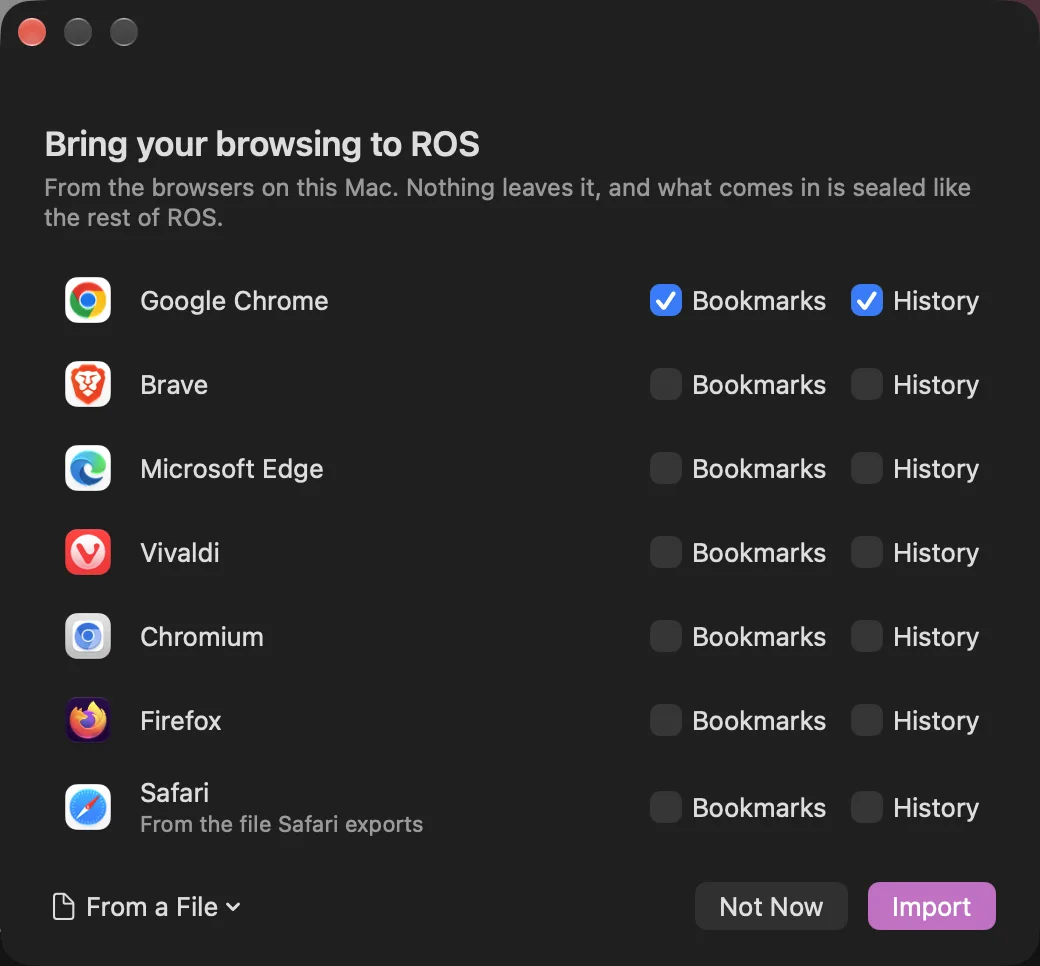
Import from another browser
- Choose File › Import from Browser…. You can also click Import on the Bring your browsing card on a new tab, or use Settings › General › Import from Another Browser…
- ROS lists the browsers on your Mac: Google Chrome, Brave, Microsoft Edge, Arc, Vivaldi, Opera, Chromium, Firefox and Safari. Tick Bookmarks, History or both for each one.
- Click Import.
- For each browser, a window opens at that browser’s folder. Click Import in it to let ROS read the bookmarks and history. ROS only reads them.
- When it’s done, ROS shows what came in, such as “12 bookmarks, 340 pages of history”. Click Open Bookmarks to see them, or Done.
Each browser’s bookmarks arrive in a folder of their own, such as “From Chrome”. Bookmarks you already have are skipped, so you can import again safely.
Import from Safari
Safari keeps its data to itself, so you bring it over as a file.
- In Safari, choose File › Export Browsing Data to File… and save the file.
- In ROS, choose File › Import from Browser…, then From a File › Safari Export (.zip or folder)…, and choose the file Safari saved.
- If the export holds passwords, ROS asks first. Click Import Passwords or Skip.
Bring your passwords
Passwords come from a file. Export them from your old browser or the Passwords app as a CSV file, then choose From a File › Passwords (.csv)… in the Import window. A password you already have for the same site and username is never replaced.
Was this helpful?