

Import or export passwords
Bring passwords from another browser or a CSV file, or export yours. Imports never replace a password you have.
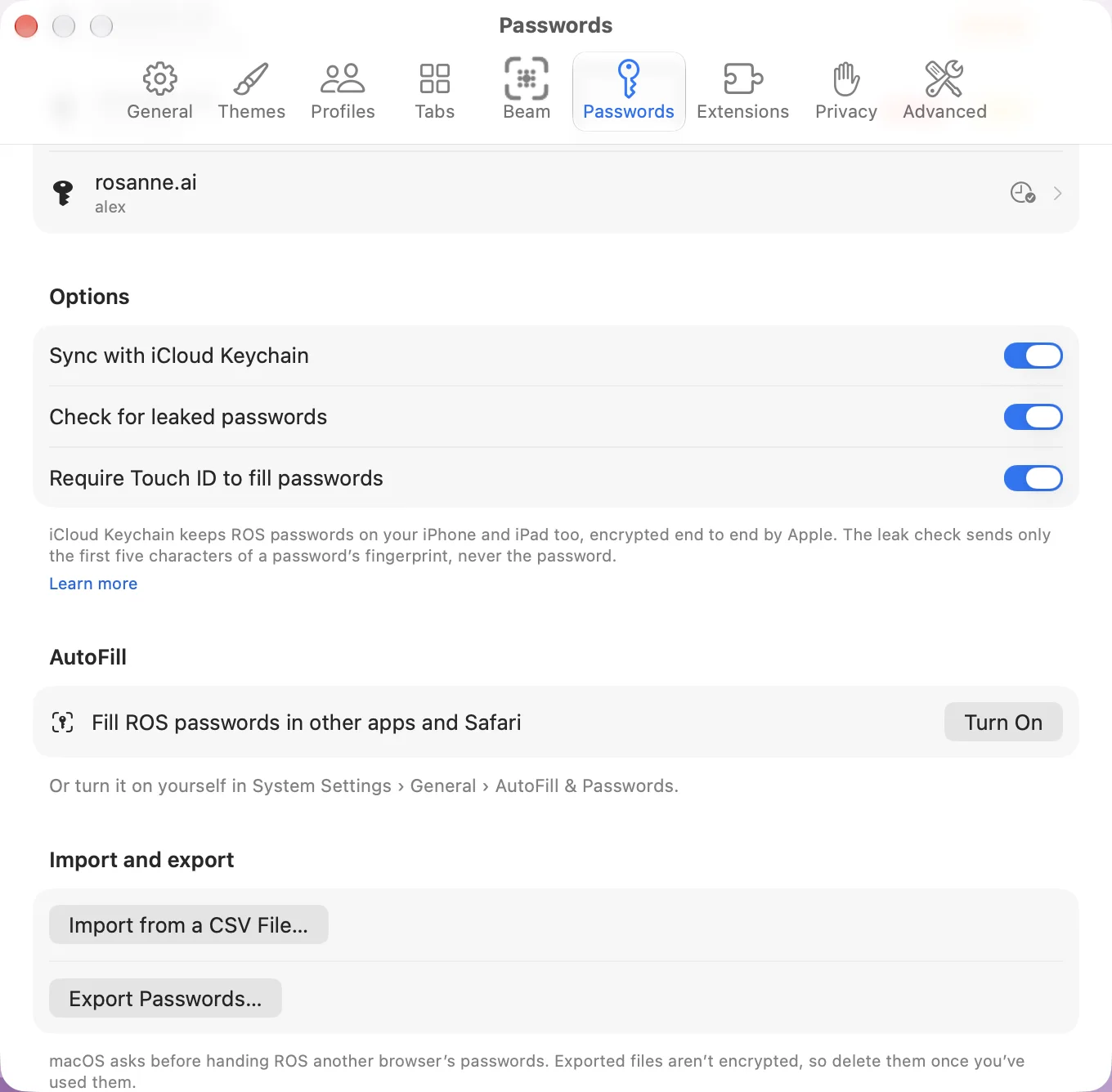
Import passwords
On Mac
- Open Settings › Passwords and unlock.
- Under Import and export, click Import from a browser, such as Chrome or Arc. macOS asks before handing over that browser’s passwords.
- Or click Import from a CSV File…. Files from Safari, Chrome, Firefox, 1Password and Bitwarden work, two-factor keys included.
On iPhone
In Settings › Passwords, unlock, then tap Import from a CSV File….
A password already saved for the same site and username stays as it is.
Export passwords
Click or tap Export Passwords… and confirm it’s you. ROS saves a CSV file, two-factor keys included.
Was this helpful?