

Use the address bar
Type an address or a search. ROS also finds your tabs, bookmarks and history, answers sums and conversions, and runs commands.
Search or go to a site
On Mac
Click the address bar or press Command L, type, and press Return. Something that looks like an address, such as rosanne.ai or localhost:3000, opens the site; anything else is searched.
| Open in a new tab behind | Command Return |
|---|---|
| Open in a new tab in front | Shift Command Return |
| Open in a new window | Option Command Return |
| Add .com and go | Control Return |
| Open a suggestion in Peek | Shift click |
On iPhone
Tap the address in the bar at the bottom, type, and tap Go. Before you type, your bookmarks show; as you type, ROS suggests matches from your history.
What the suggestions show
Your own pages come first: open tabs marked Switch to Tab, pages saved for Later, bookmarks and history. After a thin line come your search engine’s suggestions. Only the words of a search are sent, never an address, and nothing from a private tab.
To turn off the search engine’s suggestions, switch off Search suggestions in Settings › Privacy. To remove a page from the list, point at it and click ✕.
Answers as you type
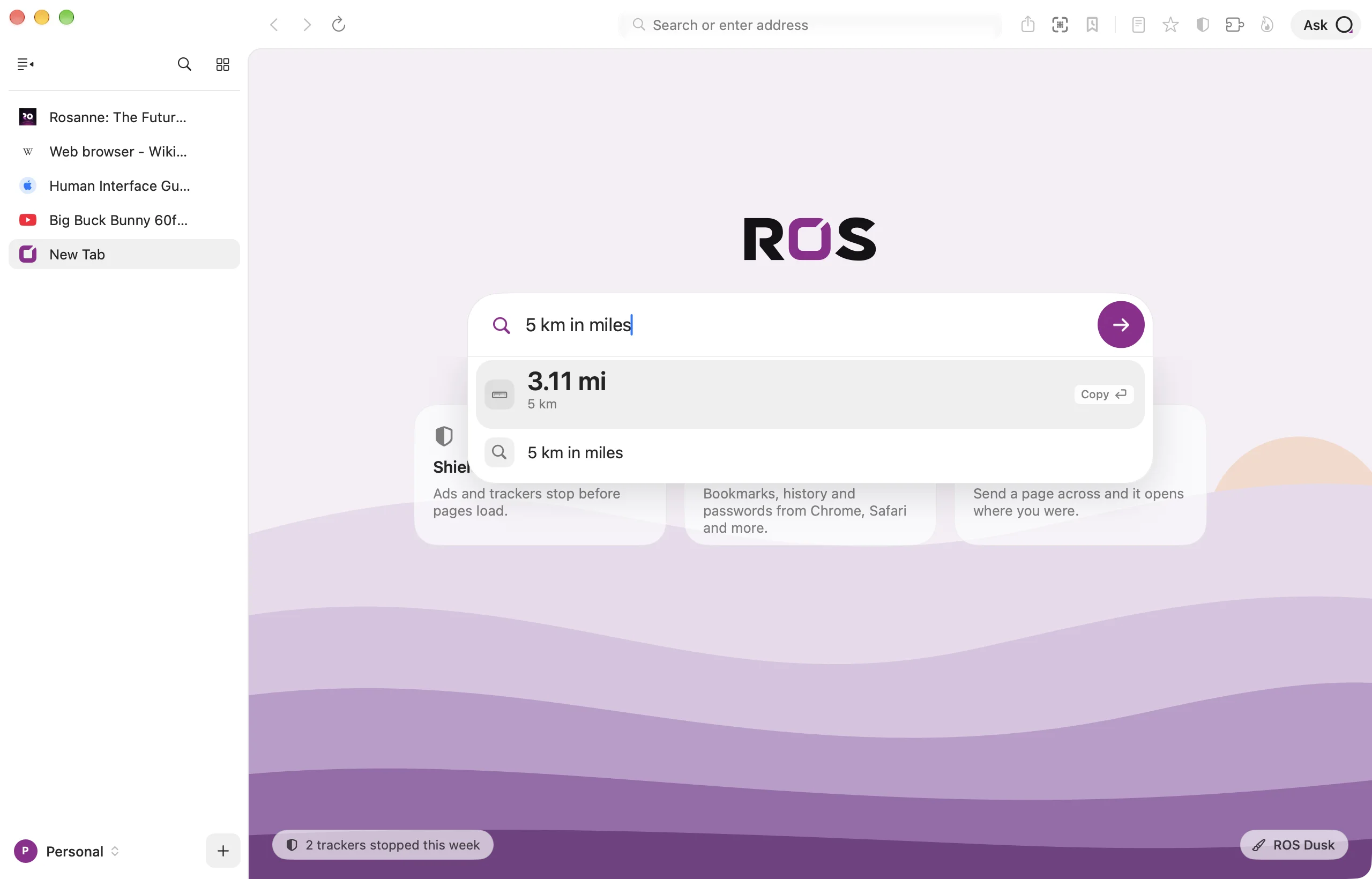
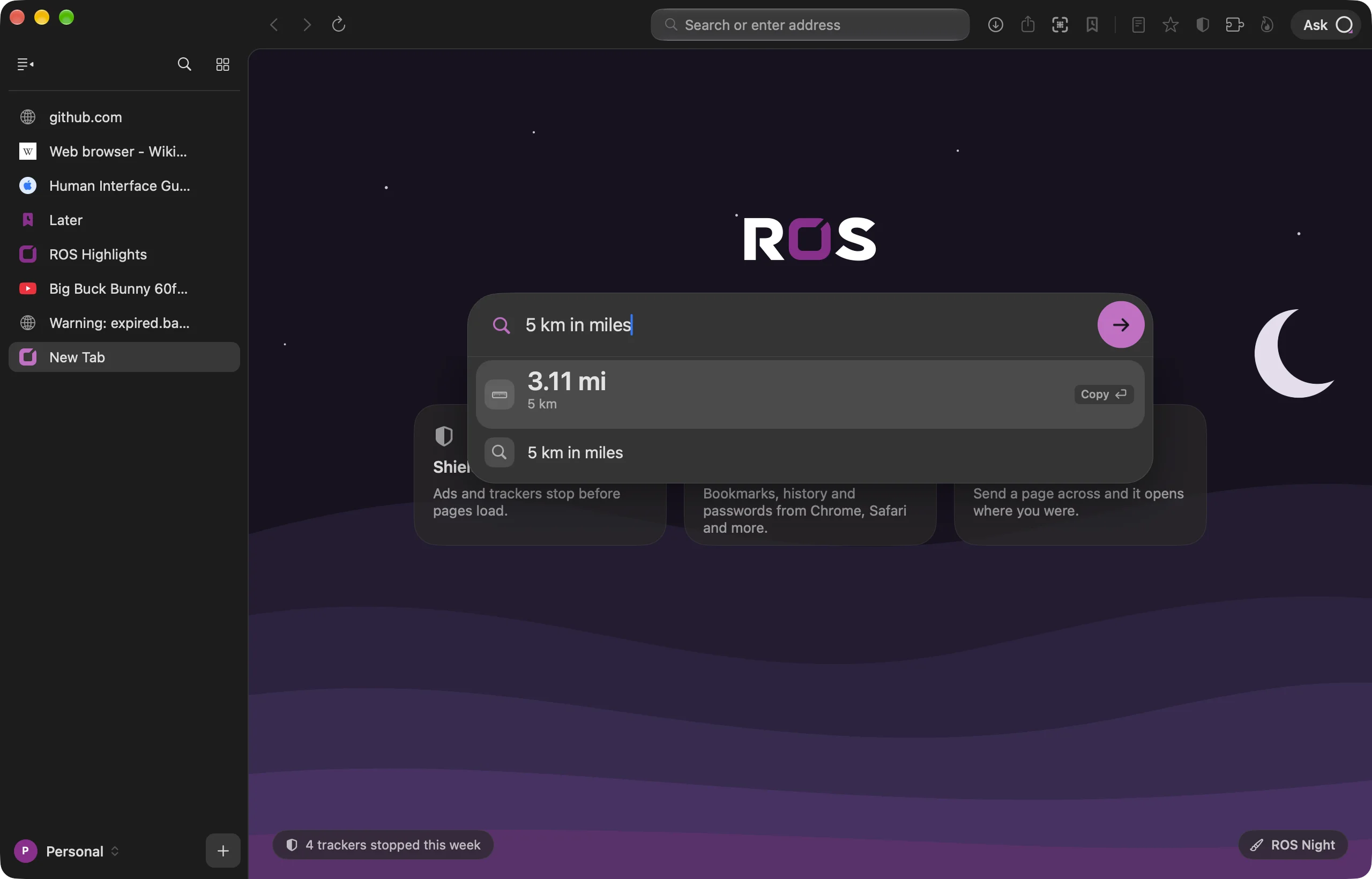
ROS works these out on your Mac as you type. Press Return to copy the answer.
- Sums, such as 20% of 150
- Units, such as 5 km in miles or 70f to c
- Currencies, such as 100 usd in cedi
- The time somewhere, such as time in tokyo
Commands
Type what you want to do and pick the command. A few to try:
- “later” opens Later
- “dark” or “light” changes the appearance
- “downloads”, “history”, “passwords” or “settings” opens them
- “private” opens a private tab
- “tabs” searches your tabs
- “snapshot”, “listen” or “reader” works on the page you’re on
Was this helpful?