

Use the sidebar or collapse it to icons
Your tabs live down the side. Hide the sidebar, or fold it to icons to give the page more room.
ROS for iPhone and iPad doesn’t have this yet. These steps are for ROS on a Mac.
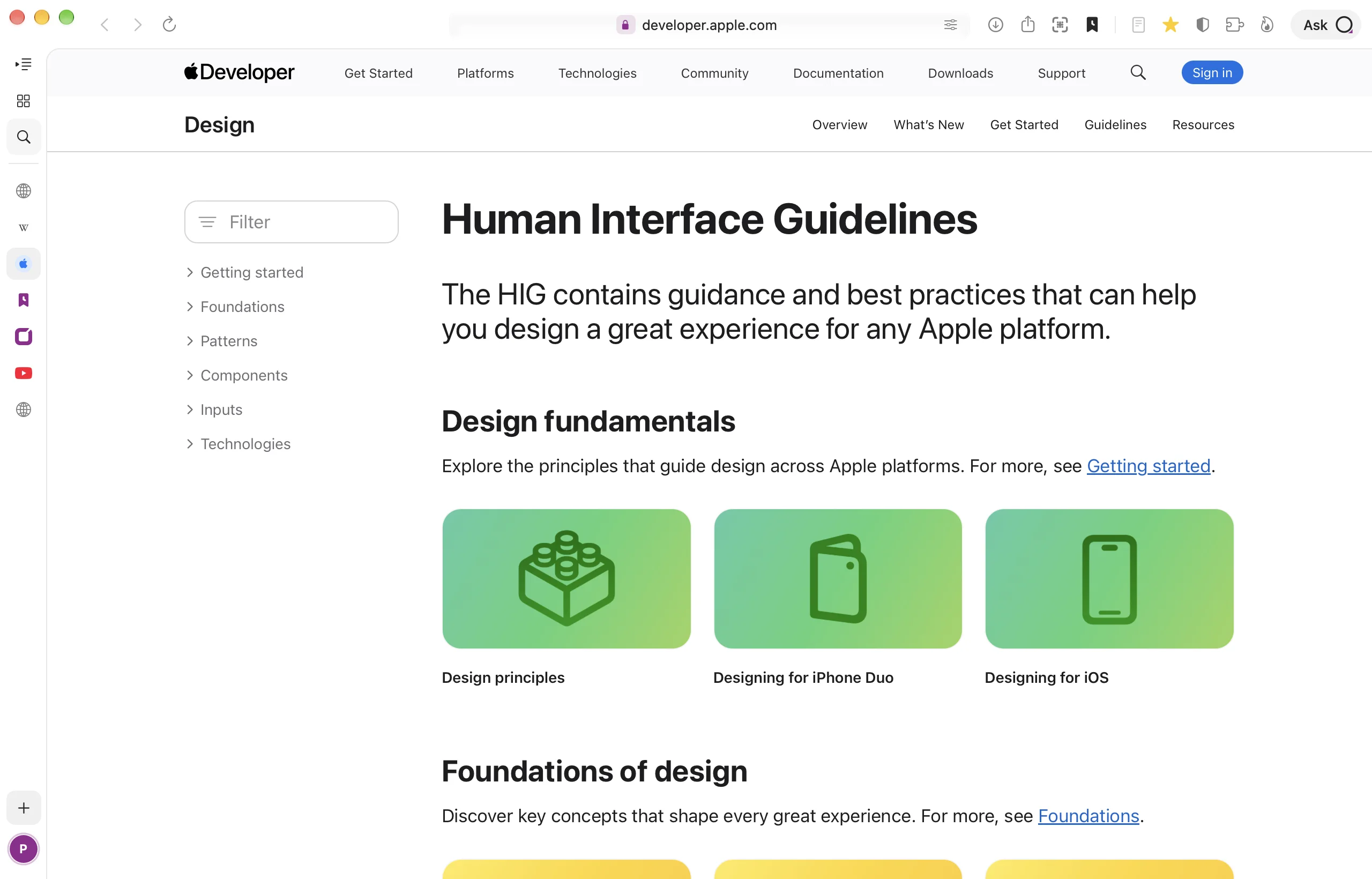
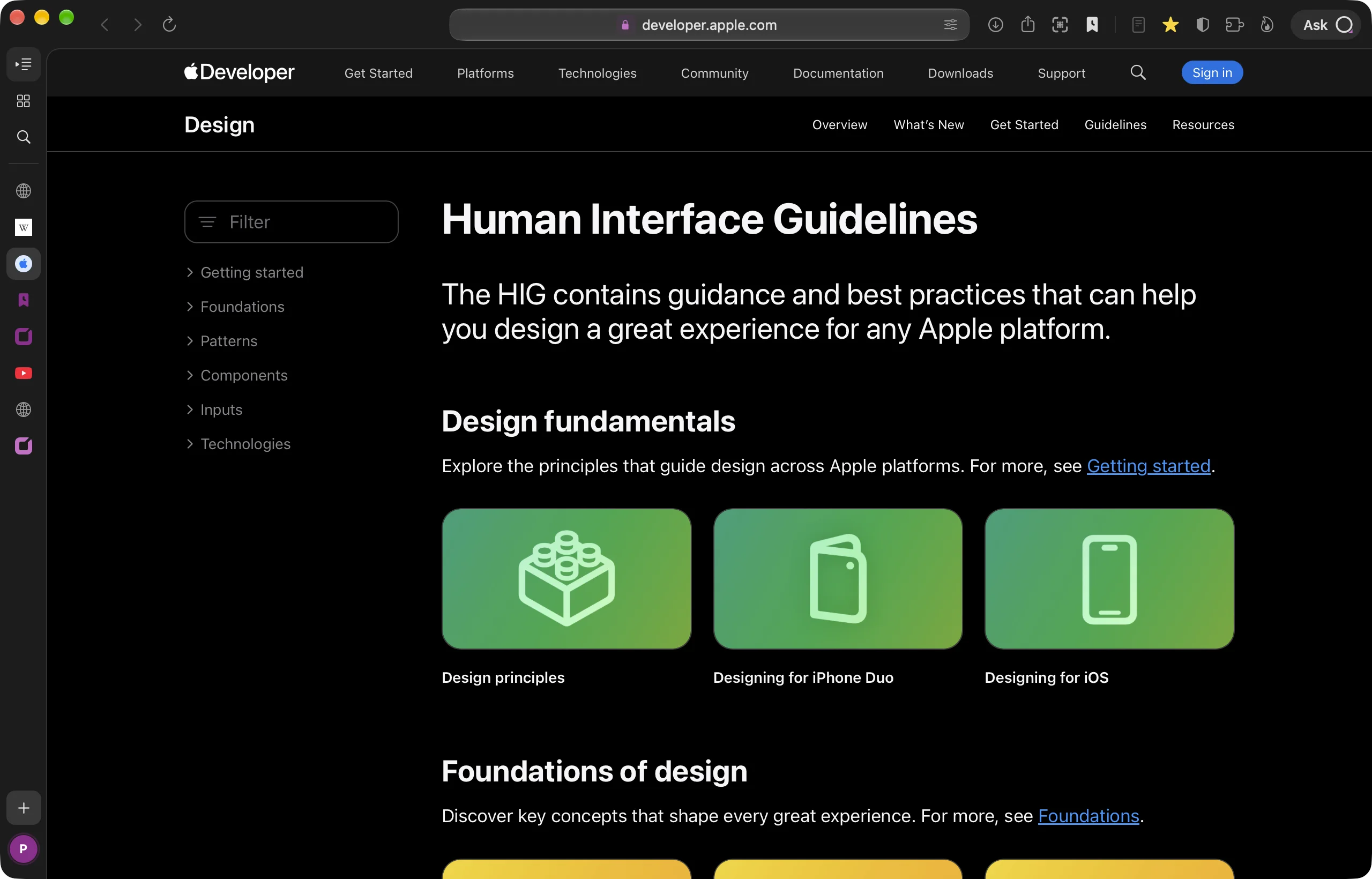
Show, hide or collapse the sidebar
| Hide or show the sidebar (View › Hide Sidebar) | Command S |
|---|---|
| Collapse tabs to icons (View › Collapse Tabs to Icons) | Option Command S |
| Hide or show the toolbar (View › Hide Toolbar) | Option Command T |
To start every window with icons only, set Show tabs as to Icons in Settings › General › Sidebar.
Work with tabs
- Point at a tab to see its card: a picture of the page, its site and when you last looked, with Duplicate, Copy Link and Close.
- Right-click a tab for Move to Group, Duplicate Tab, Copy Link, Keep Site Awake, Fireproof This Site, Burn This Site… and Close Other Tabs.
- Press Command 1 to Command 9 to jump to a tab, and Shift Command Right bracket or Shift Command Left bracket for the next or previous one.
- Press Command D to duplicate the tab you’re on.
Was this helpful?