

Float videos with Auto Float
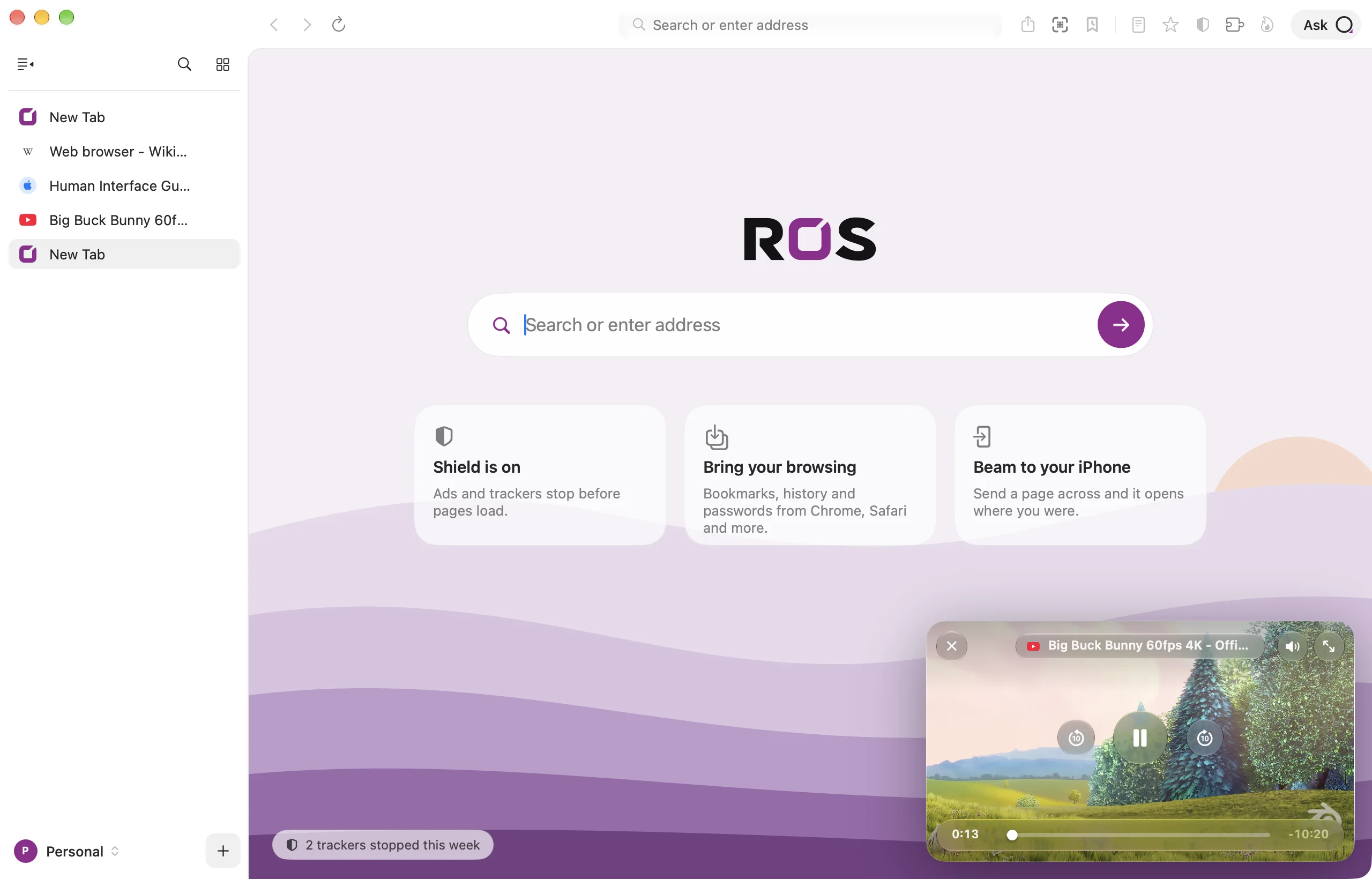
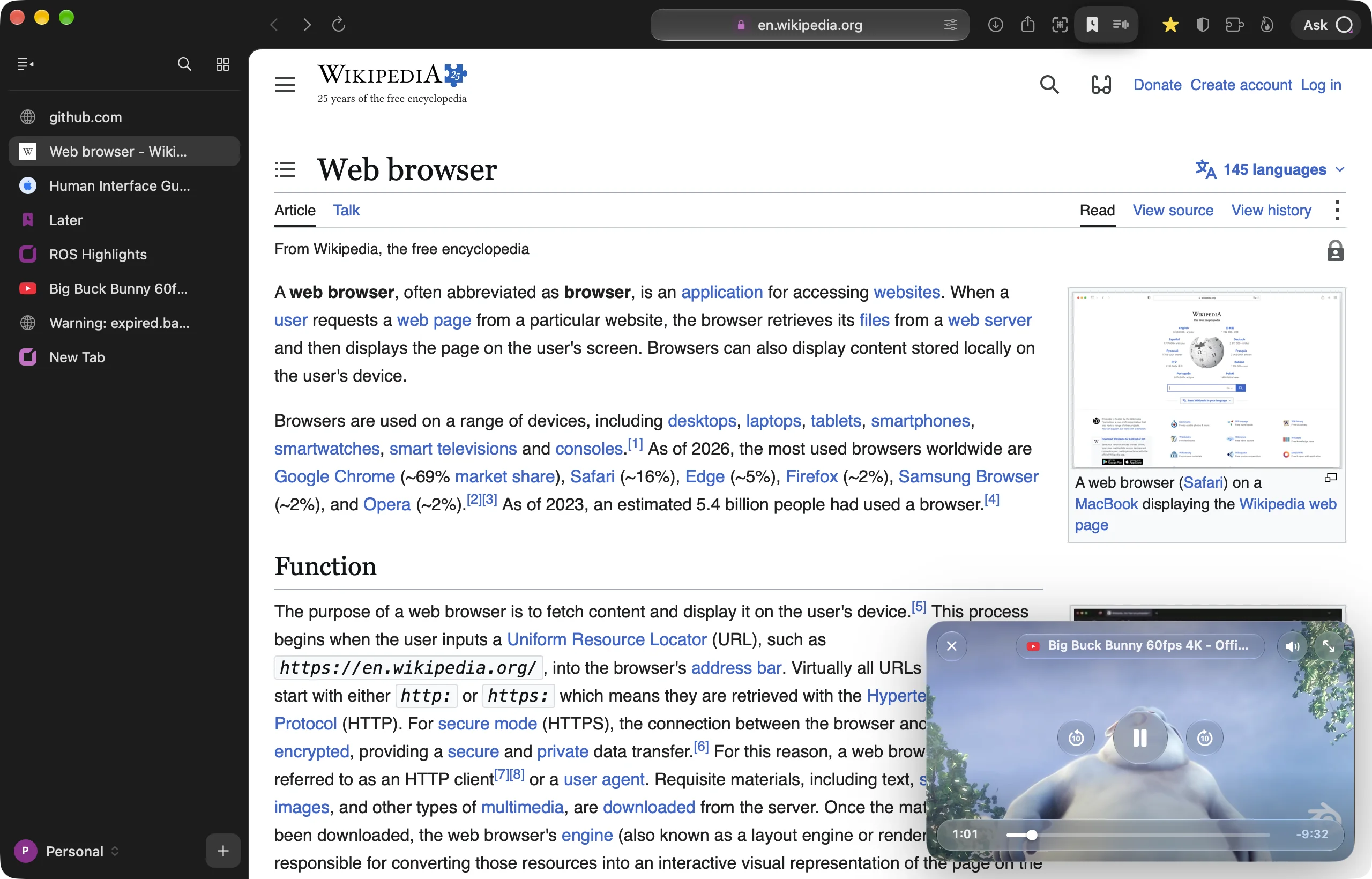
Switch tabs and your video or call keeps playing in a small card in a corner. Go back and it slips into place.
On iPhone and iPad
Turn on Auto Float in Settings, under Auto Float. When you switch tabs or leave ROS while a video plays, it carries on in Picture in Picture. Come back and it returns to the page.
To float a video yourself, open the page menu and tap Picture in Picture.
Turn on Auto Float
Auto Float is off until you turn it on.
- Open Settings › Tabs.
- Under Auto Float, turn on Float videos and calls when you switch tabs.
Use the floating card
Leave a tab that’s playing a video or in a call, and it floats in a corner of the page you go to.
- Point at a video’s card for its controls: play and pause, ten seconds back or forward, mute and the time.
- A call’s card keeps its microphone and camera buttons. Closing it leaves the call running in its tab.
- Drag the card to any corner. It stays there next time.
- To go back, click Back to tab, double-click the card, or switch to the tab.
Turn it off for a site
On the site, press Shift Command I to open Site Controls and switch off Auto Float. That site’s videos never float.
Was this helpful?