

Use profiles and Guest windows
Keep work and home apart. Each profile has its own tabs, history, bookmarks, sign-ins, passwords and extensions.
ROS for iPhone and iPad doesn’t have this yet. These steps are for ROS on a Mac.
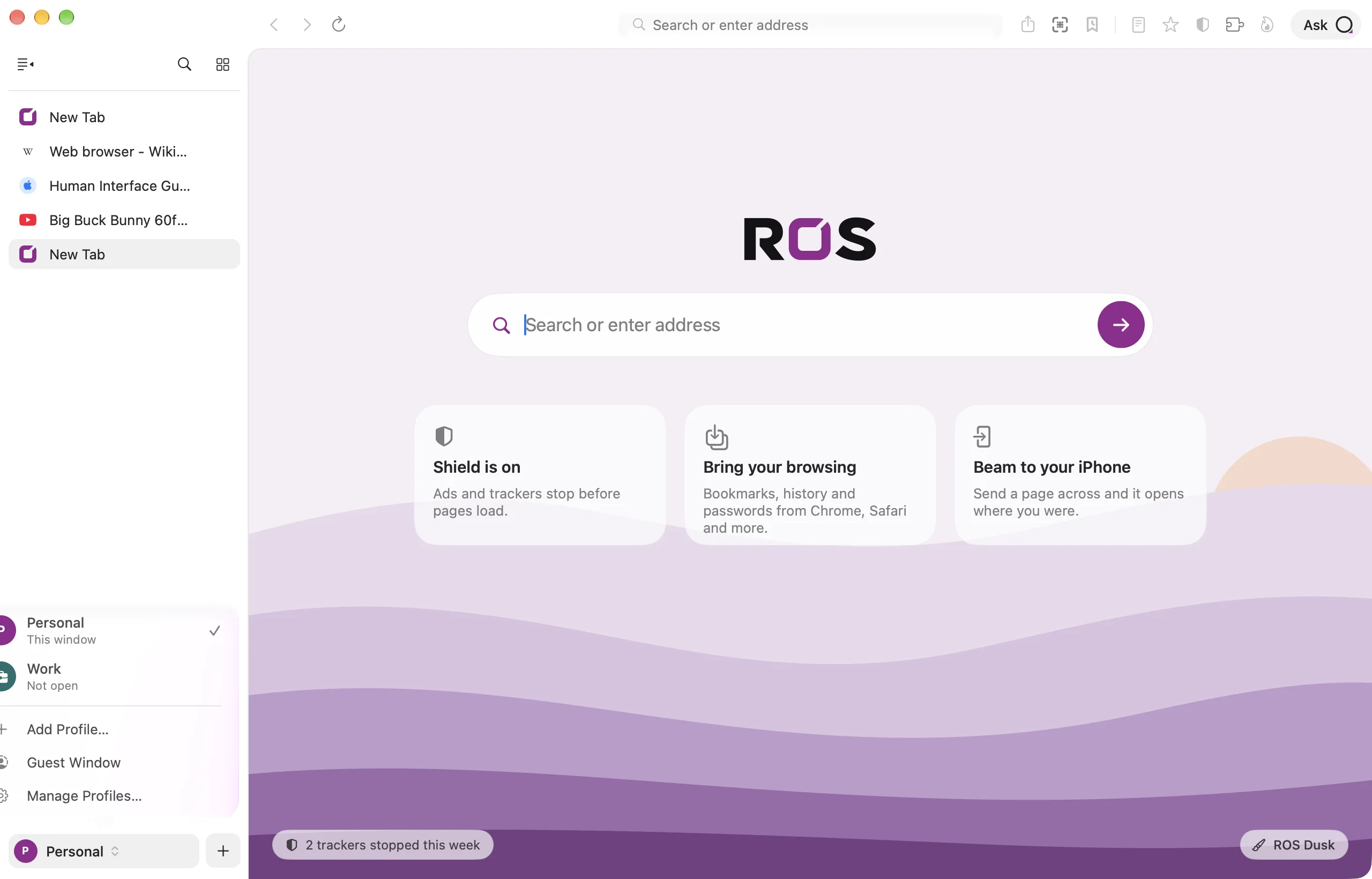
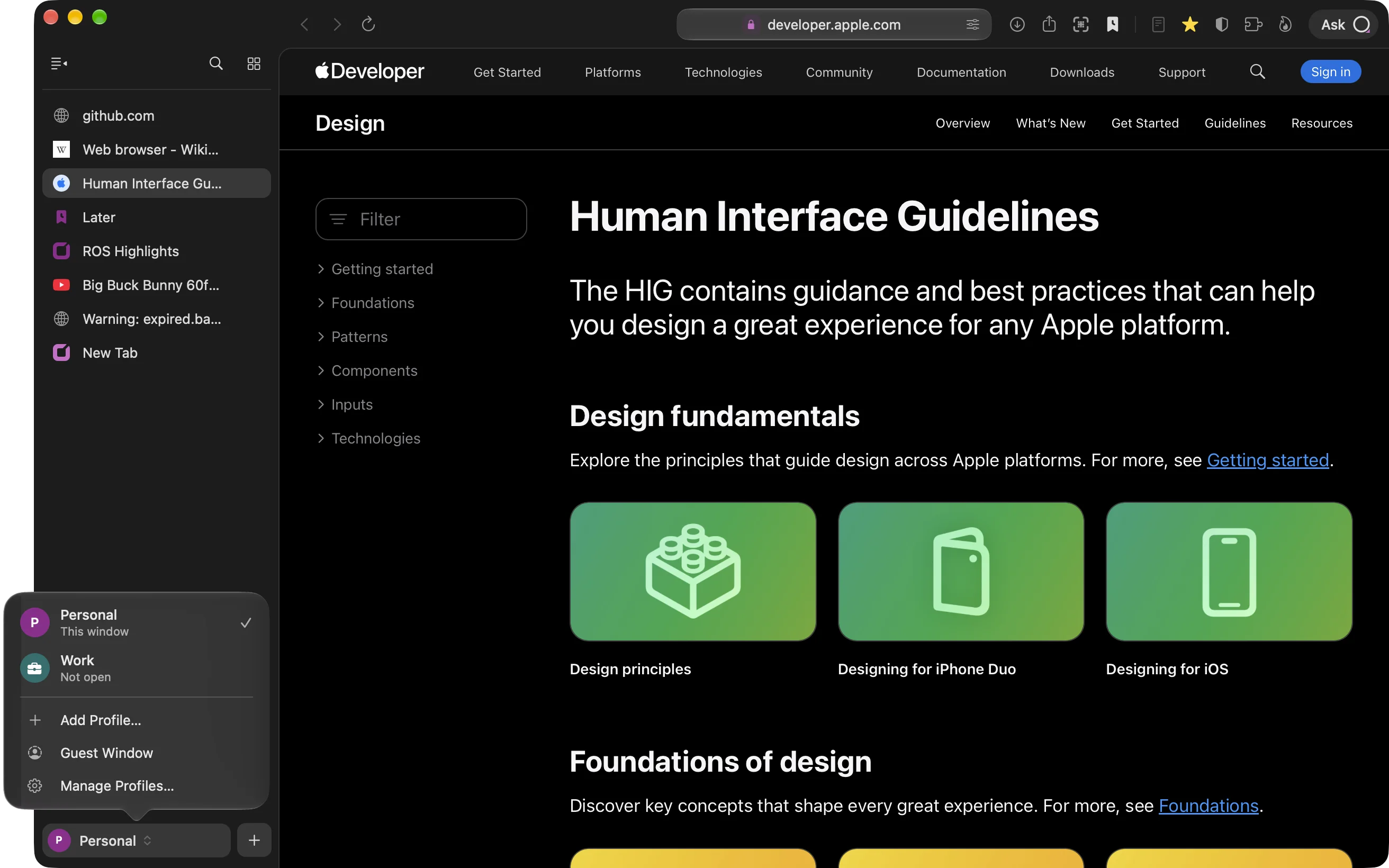
Add a profile
- Click your profile button at the foot of the sidebar, then Add Profile….
- Give it a name, a colour and a mark.
- Turn on Lock with Touch ID if you want it to ask before it opens.
- Click Add Profile.
Each profile opens in windows of its own. With more than one profile, the Dock icon shows which one is in front. Settings are shared.
Switch profiles
Click your profile button and choose a profile. To pick one each time ROS opens, choose Ask who’s browsing under When ROS opens in Settings › Profiles.
Open a Guest window
Click your profile button and choose Guest Window. Everything in it is erased when it closes, so it’s right for lending your Mac to someone.
Remove a profile
In Settings › Profiles, click Remove…. Its tabs, history, bookmarks, sign-ins, passwords and extensions are erased from this Mac. To keep its bookmarks, tick the box to export them first.
Was this helpful?